How to Create a Stunning Gym Timetable in Minutes with AI Image Studio
3-minute read · Digital Signage · Gyms & Martial Arts
Whether you run a Brazilian Jiu Jitsu academy, a boxing gym, a CrossFit box, or a personal training studio, one thing is always true: your students need to know when to show up. A clear, professional-looking weekly timetable displayed on a screen does that better than any printed sheet on the wall — and now you can create one for free, in under five minutes, with MenuBoard Online's AI Image Studio.
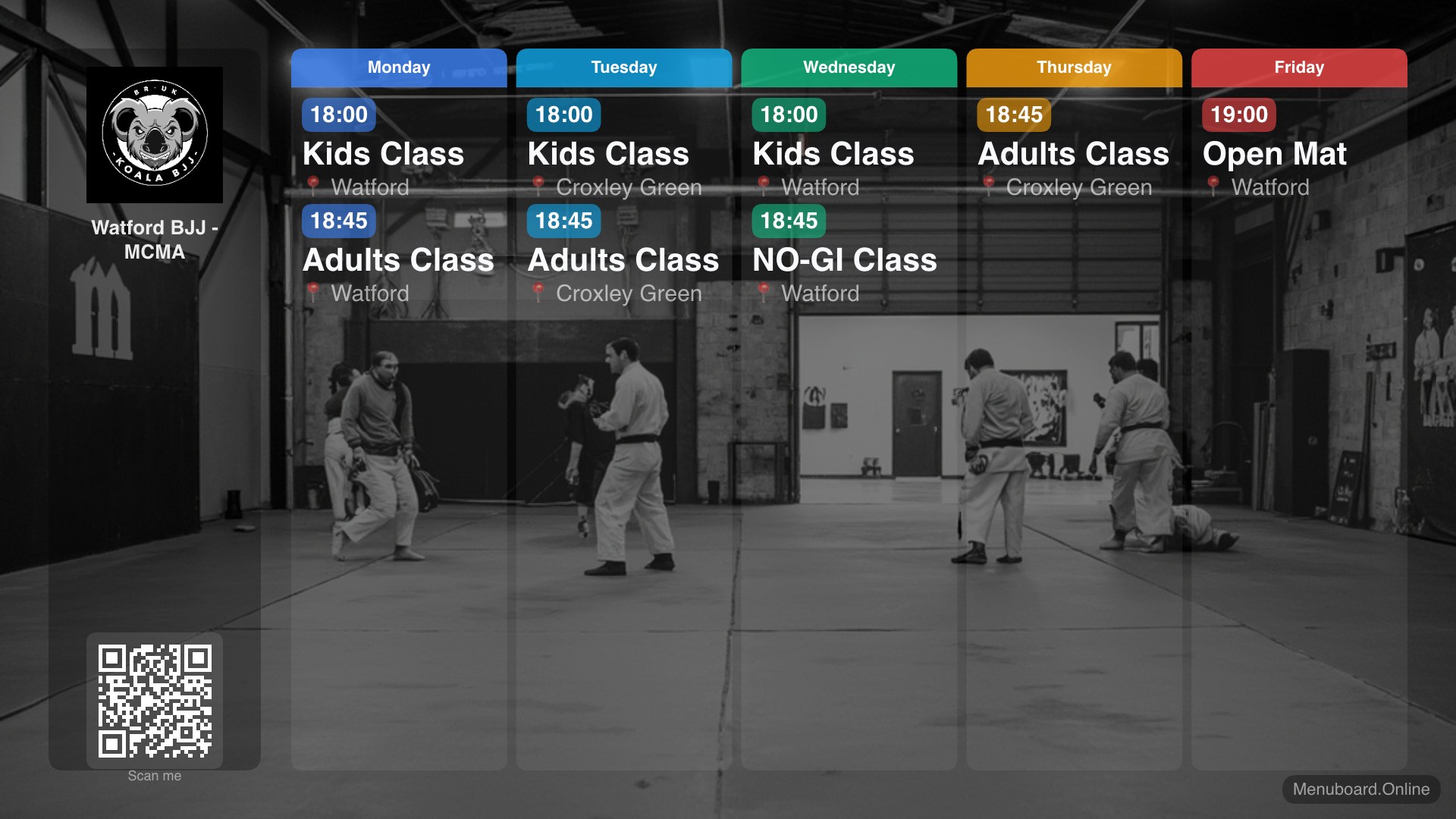
A real timetable generated with Image Studio — background photo, club logo, colour-coded days and class times, ready for any TV screen.
Why Your Gym Needs a Digital Timetable
Printed schedules go out of date the moment a class changes. WhatsApp messages get buried. A screen on your gym wall, showing a sharp 1920×1080 timetable image, solves all of that:
- Always visible — members check it the moment they walk in.
- Instant to update — regenerate the image in seconds when a class moves.
- Professional — reinforces your brand with your logo, colours, and photography.
- Zero cost — the Image Studio timetable tool is completely free, no account needed.
Step-by-Step: Building Your Gym Timetable
Step 1 — Open Image Studio
Head to menuboard.online/image-studio and click the Timetable tab at the top of the left panel. No sign-up required.
Step 2 — Upload a Background Photo
Click "Drop or click to upload background" and choose a photo of your gym floor, mats, or training area. A dark, slightly blurred shot works best — it gives great contrast so your text pops without distraction.
Tip: Don't have a gym photo? Use the AI Background tab first. Type something like "BJJ gym with dark mats, dramatic lighting, no text" and generate a stunning background in seconds. Download it from the gallery, then switch to the Timetable tab and upload it as your background.
Step 3 — Add Your Logo
Click "Logo (optional)" and upload your club badge or logo. PNG files with a transparent background look the cleanest. You can position it at the top, centre, or bottom of the left-hand panel using the position picker.
Step 4 — Enter Your Schedule
Below the logo section, you'll see a row of day tabs — Sun through Sat. Click each day you run classes and fill in your events:
- Event name — e.g. Kids Class, Adults BJJ, Open Mat
- Location — e.g. Watford, Croxley Green
- Time — e.g. 18:00, 09:00–10:30
Each day gets its own colour automatically, making the final image easy to read at a glance. You can add multiple classes per day — perfect for academies running kids, beginners, and advanced sessions back to back.
Step 5 — Add a QR Code (Optional)
If you have a website or a booking page, paste the URL into the QR Code URL field. A scannable QR code will appear in the bottom-left corner of the image, letting anyone in the gym jump straight to your schedule or sign-up page from their phone.
Step 6 — Generate & Download
Hit "Generate Timetable Image" and within a second your 1920×1080 HD timetable is added to the gallery on the right. Click the image to expand it, then hit Download to save it as a high-quality JPEG — ready to display on any TV, screen, or smart display in your gym.
Putting It on Your Screen
Once you have the image, getting it on a TV is straightforward with MenuBoard Online:
- Sign up for the free plan (no credit card needed).
- Upload your timetable image to a playlist.
- Open the playlist URL in a browser on your TV, Fire TV Stick, or Android device.
- Your timetable goes live instantly — and stays there until you update it.
When your schedule changes, simply regenerate the image in Image Studio and swap it into your playlist. The screen updates in seconds.
The Result
In about five minutes, you go from a blank canvas to a polished, professional timetable that looks great on any screen — your front desk TV, a tablet by the door, or even a projector screen on the wall. No design software, no designer, no ongoing cost.
If you coach Brazilian Jiu Jitsu, boxing, MMA, yoga, or any other discipline, give it a try — your members will notice the difference.